

Why Your PDF Won't Print Correctly (And How to Fix Each Cause)
The six most common reasons PDFs fail at the printer—and the exact setting or fix for each one
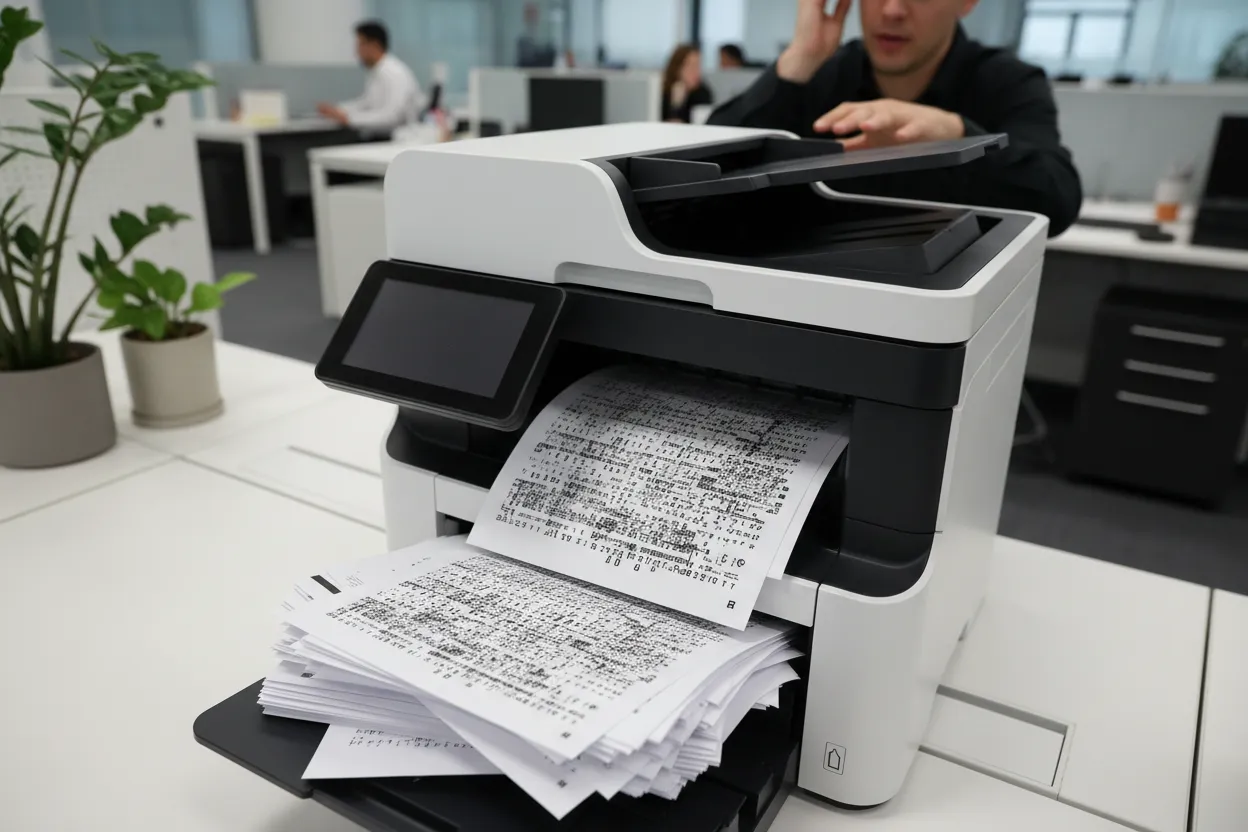
A PDF that won't print correctly is usually failing for one of six reasons: fonts aren't embedded and your printer can't substitute them, the PDF is a low-resolution scan that pixelates or chokes the spooler, the file contains transparency or complex vectors your driver can't render, it's password-protected or has print restrictions, your print dialog is scaling the page incorrectly, or the driver itself is mangling the output. Work through these in order—most PDF print failures come from the first three.
Missing or Non-Embedded Fonts
If text prints as boxes, blanks, or substitutes with the wrong typeface, the fonts used in the PDF aren't embedded and your system doesn't have them installed. PDFs are supposed to carry their fonts with them, but poorly exported files sometimes reference fonts by name and assume the printer will figure it out. It won't.
The fix: Print the PDF as an image. In Adobe Reader or Acrobat, go to File > Print, click Advanced, and check Print as Image. This rasterizes every page into a bitmap before sending it to the printer. You lose the ability to search text in the printed output, but the page will look exactly as designed. The tradeoff is slower printing and larger spool files—a 10-page document might take a minute instead of ten seconds.
If you control the PDF creation, re-export it with fonts embedded. In most PDF writers, this is a checkbox during export or Save As PDF. Acrobat calls it "Embed all fonts." Word, InDesign, and other layout tools have the same option.
Low-Resolution Scanned PDFs
A PDF created by scanning a document at 150 DPI or lower will print blurry, pixelated, or fail entirely if the raster image is large enough to overwhelm the print spooler. Scanned PDFs are just image containers—if the source image is bad, the print will be worse.
The fix: If you still have the original document, rescan it at 300 DPI for black-and-white text or 600 DPI if you need crisp fine print. Most scanners default to 150 or 200 DPI to save file size, but print quality starts at 300. If you don't have the original and the PDF is illegible, there's no fix—the resolution isn't there. You can't add detail that was never captured.
If the file is enormous and won't spool, try printing one page at a time from the print dialog (specify page range 1-1, then 2-2, and so on). Slow, but it works when the spooler chokes on a 200 MB scan.
Transparency and Complex Vector Rendering
PDFs with transparency effects, drop shadows, gradients, or layered vector art sometimes print with white boxes, missing elements, or garbled graphics. The printer driver has to flatten transparency into something the printer understands, and not all drivers do this well. This is especially common with older PostScript printers or basic PCL drivers.
The fix: Print as image (same steps as the font fix above). Rasterizing the page sidesteps the driver's transparency flattening entirely. If you're preparing the PDF for someone else to print, flatten transparency before export. In Acrobat, go to Advanced > Print Production > Flattener Preview and apply the High Resolution preset. In design software, look for "flatten transparency" or export as PDF/X-1a, which forces flattening.
Password or Permission Restrictions
Some PDFs are locked with a password or have printing disabled in their security settings. You'll either be prompted for a password when you try to print, or the Print option will be grayed out entirely.
The fix: If you have the password, enter it. If you don't and you legitimately need to print the document, ask the sender for the password or an unrestricted copy. There are tools that claim to strip PDF permissions, but using them on a document you don't own is legally murky and often violates terms of service. If this is a contract, invoice, or legal document, the restriction is usually there for a reason—get the unlocked version from the source.
Wrong Page Scaling in the Print Dialog
If your PDF prints with content cut off at the edges or shrunk into the center of the page with huge margins, the print dialog is scaling incorrectly. Most PDF readers default to "Fit" or "Shrink oversized pages," which sounds helpful but often misjudges the page size or applies scaling when none is needed.
The fix: In the print dialog, look for Page Sizing & Handling (Adobe) or Scale (other readers). Set it to Actual Size or 100%. If content is still cut off, the PDF page size doesn't match your paper—check the PDF's page dimensions (usually shown in the print preview or document properties) and make sure your printer is set to the same size (Letter, A4, Legal, etc.). If the PDF is tabloid-sized and you're printing on Letter, you'll need to choose "Fit" or "Shrink to printable area," but do it deliberately.
Driver or Spooler Issues
If the PDF previews correctly but prints blank pages, partial pages, or triggers a printer error, the driver may be corrupted or incompatible with the PDF's structure. This is more common with network printers, generic drivers, or printers running outdated firmware.
The fix: Update your printer driver from the manufacturer's website—not from Windows Update, which often supplies generic versions. If that doesn't work, try printing from a different application (open the PDF in a browser, Foxit, or Preview on Mac instead of Adobe Reader). If it prints fine from another app, the original reader's settings are the problem. As a last resort, print as image.
If the Windows print spooler itself is stalled, open Services (search "services" in the Start menu), find Print Spooler, and restart it. Clear the spooler folder at C:\Windows\System32\spool\PRINTERS\ if jobs are stuck.
When to Stop Troubleshooting
If you've tried printing as image, updated the driver, checked scaling, and the PDF still won't print correctly, the file itself may be corrupt. Try opening it on another computer or in another PDF reader. If it fails everywhere, ask the sender for a new copy. If you're under deadline and can't wait, screenshot each page and print the images—it's ugly, but it works.
Need a PDF printed right the first time?
We'll handle the file prep, printing, and mailing—no troubleshooting required.
Upload & PrintFrequently Asked Questions
Why does my PDF print blank pages?
Blank pages usually mean the printer driver can't render the PDF's content—often due to transparency, complex vectors, or a corrupted file. Print as image from the print dialog's Advanced settings, or update your printer driver from the manufacturer's site.
What does 'Print as Image' do in Adobe Reader?
Print as Image rasterizes each PDF page into a bitmap before sending it to the printer. It bypasses font embedding, transparency flattening, and vector rendering issues, but prints more slowly and creates larger spool files.
How do I fix a PDF that prints with missing text?
Missing or garbled text means fonts aren't embedded in the PDF. Print as image to rasterize the text, or if you created the PDF, re-export it with the 'Embed all fonts' option enabled in your PDF writer or design software.
Why is my PDF printing smaller than the page?
Your print dialog is set to 'Fit' or 'Shrink oversized pages' instead of 'Actual Size.' In Page Sizing & Handling, select Actual Size or 100% to print without scaling. Also confirm the PDF page size matches your paper size.