

Why Does My Printer Say It’s Offline? (And How to Bring It Back Online Fast)
Your printer is powered on. It’s connected. It worked yesterday.
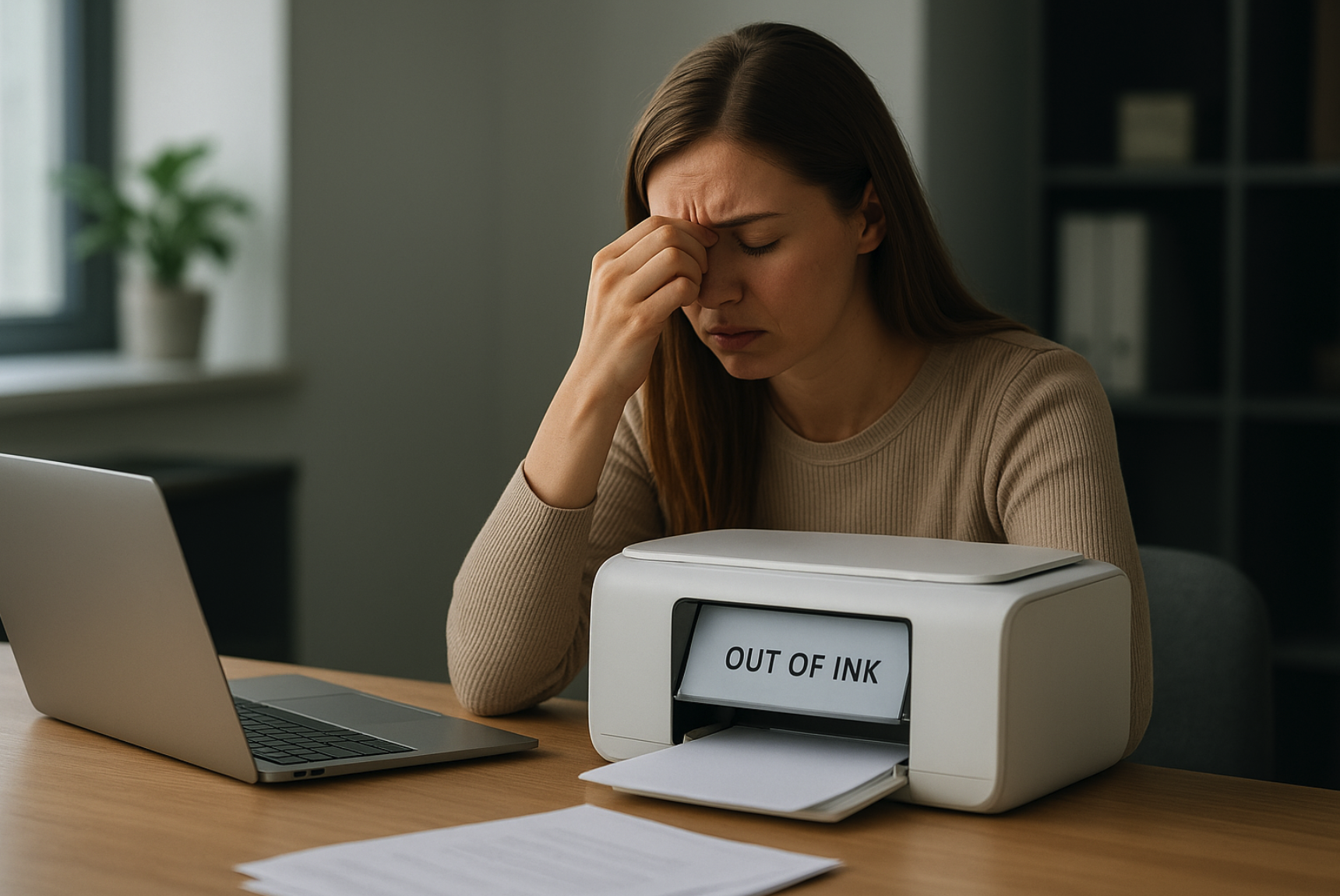
Your printer is powered on. It’s connected. It worked yesterday.
But today? Your computer insists it’s offline even though you can see it sitting right there.
“Offline” errors happen across all major printer brands (HP, Canon, Epson, Brother), and the fix isn’t always obvious.
Here’s what causes the issue and how to get your printer online again quickly.
Before diving into software fixes, check the printer itself:
- Is it powered on?
- Is there an error message?
- Is it out of paper?
- Are any lights blinking?
- Does it show a Wi-Fi or connection symbol?
A simple hardware issue (paper jam, low ink, open door) can force printers into an “offline” safety mode.
It sounds too simple but it fixes a huge percentage of offline errors.
Turn it off.
Wait 10 seconds.
Turn it back on.
This resets the printer’s network connection and can clear corrupted states.
This is the #1 cause of offline errors on Windows.
Open Control Panel → Devices and Printers
Right-click your printer → See what’s printing
At the top, click Printer
Make sure “Use Printer Offline” is unchecked
If it was turned on, turning it off often fixes the issue instantly.
Wireless printers will show as offline if:
- the Wi-Fi password changed
- the router rebooted
- the printer hopped onto the wrong band
- the printer dropped connection due to weak signal
Use your printer’s Wireless Setup Wizard to reconnect it.
Tip:
Nearly all printers connect to 2.4GHz Wi-Fi, not 5GHz. Your router should be able to handle this by default, but it's good to check.
If the spooler freezes, printing stops entirely.
Press Win + R , type services.msc
Scroll to Print Spooler
Right-click → Restart
The printer may immediately switch to “Ready” after this.
A corrupted connection profile can cause persistent offline status.
Settings → Bluetooth & devices → Printers → Remove → Add a printer
System Settings → Printers & Scanners → Select → Remove Printer → Add Printer
This resets the connection entirely.
VPNs (especially corporate ones) often block local network devices.
To test:
- Turn off your VPN
- Try printing
- If it works, whitelist local devices in your VPN settings
Firewalls can also block printer communication, especially after OS updates.
If your printer is USB-connected:
- Try a different USB port
- Try a different cable
- Plug directly into your laptop (not a hub or dock)
A bad USB cable can power the printer but prevent communication, causing “Offline” errors.
Outdated drivers → offline.
Corrupted firmware → offline.
Major OS updates → offline.
Check for:
- Manufacturer driver updates
- Printer firmware updates
- macOS or Windows updates that may require reinstallation of the printer
If the printer suddenly goes offline after a system update, this is the fix.
If none of these steps work, it’s often a sign of:
- corrupted internal networking components
- a dead Wi-Fi module
- firmware corruption
- a failing controller board
- OS/driver incompatibility on older models
These are extremely common in printers 3–7+ years old... and usually not worth repairing.
With Have It Printed , you never need to worry about drivers, spoolers, Wi-Fi bands, or offline status.
Upload your document → we print it → we mail it → you get tracking.
100% online. 0% printer troubleshooting.