
Streaky, Faded, or Blotchy Prints? Here’s How to Fix Bad Print Quality at Home
You hit “Print,” and instead of a clean, sharp page, you get streaks, faded text, missing colors, or blotchy bands ac...
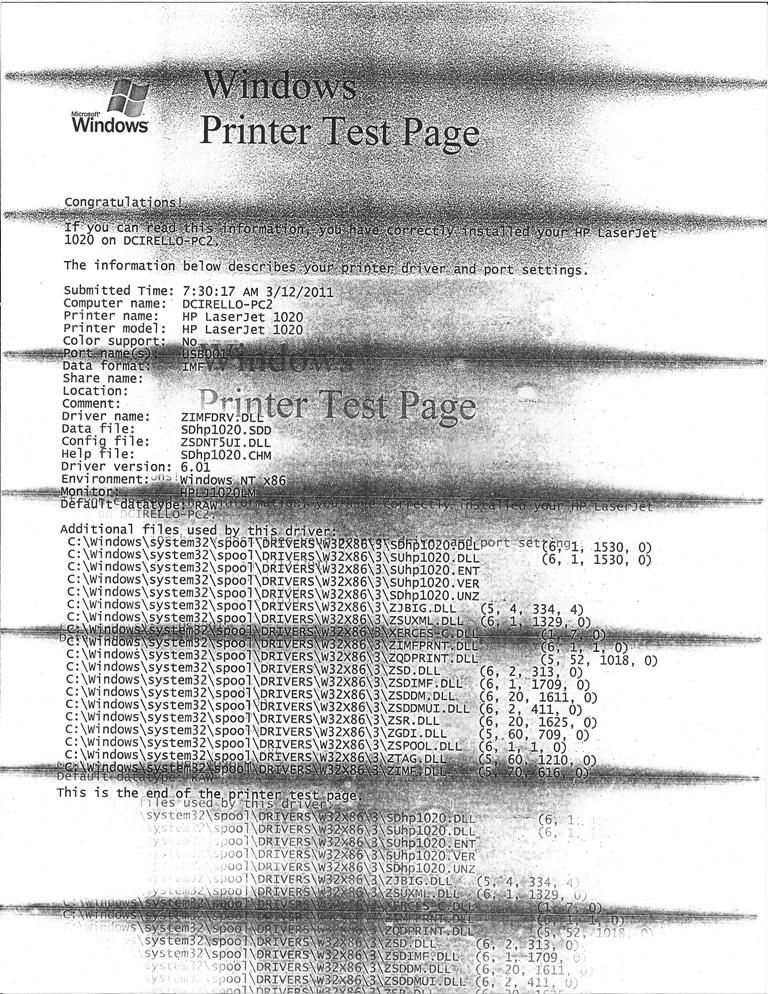
You hit “Print,” and instead of a clean, sharp page, you get streaks, faded text, missing colors, or blotchy bands across the document. Bad print quality is one of the most common printing issues, especially for people who print infrequently.
Fortunately, most of these problems come from a few predictable causes, and you can usually fix them quickly.
Inkjet printers work by spraying tiny droplets of ink through microscopic nozzles. When you don’t print often, those nozzles dry out or clog, creating streaks or missing lines.
Look for:
- “Clean Printheads”
- “Nozzle Check”
- “Deep Cleaning”
These options are usually found in your printer’s utility software or settings panel.
Run the cleaning cycle once, print a test page, and only run it again if absolutely needed. Cleaning cycles burn a lot of ink, so avoid doing three or four in a row unless necessary.
If your text looks fuzzy, crooked, or uneven, your printheads may be misaligned.
Check your printer’s maintenance menu for:
- “Align Printheads”
- “Alignment Page”
The process usually prints a test pattern you select from, and the printer calibrates itself based on your input.
This one surprises most people.
If your printer thinks you’re using glossy photo paper when you’re actually using standard copy paper (or vice versa), the ink will absorb incorrectly, causing:
- blotches
- smearing
- washed-out colors
- inconsistent coverage
Make sure your paper type and quality settings match what’s actually in the tray.
Even if your ink levels look good, cartridges can cause issues if:
- the protective strip wasn’t fully removed
- the cartridge isn’t seated properly
- contacts are dirty
- the cartridge is low, but the printer hasn’t detected it yet
- one color is empty (causing strange tints)
Remove each cartridge, gently clean the contacts with a lint-free cloth, then reinstall them securely.
Bad paper = bad output.
For best results:
- Avoid thin, cheap paper that absorbs too quickly
- Store paper in a dry location to avoid moisture-based curl
- Use manufacturer-approved weights for photo or specialty prints
Paper quality is a more common cause of streaks than people realize.
Your printer likely has several modes:
- Draft
- Normal
- High Quality
Draft mode saves ink but usually introduces streaking or uneven coverage.
If quality matters, bump it up to Normal or High.
If bad output persists even after:
- cleaning
- aligning
- checking paper settings
- reseating cartridges
…then you may be dealing with:
- a failing printhead
- aging rollers
- partially dried internal ink
- a firmware bug impacting output
- or a clogged purge unit
These issues are common in older or rarely used inkjet printers, and usually cost more to fix than the device is worth.
Consistent, high-quality printing is hard for consumer printers and effortless for commercial systems.
Upload your file to Have It Printed , and we’ll produce crisp, clean output every time — no cleaning cycles, no streaks, no ink waste.